February 7, 2021

Microsoft Teams Notification from GitHub Actions

I was surprised to find out that there is no official GitHub Actions for integrating with Microsoft Teams, because well, Microsoft owns GitHub now. There are third-party actions in the marketplace, but because some of our jobs run on self-hosted runners, I didn't want to take any chances, so decided to write a quick script that notifies Microsoft Teams on build status, and having used Jenkins Office 365 Connector already to integrate with Teams in the past, I had some basic idea of what I wanted to do.

Started out by adding an incoming webhook to a Teams channel where we can send messages to. This URL will be stored as an encrypted secret in GitHub, since anyone who knows this URL will be able to send messages to the channel.

The next step was to define how the message would look like in Teams, which is done through cards. Microsoft even has a nifty designer. At first I created an adaptive card that's more elaborate than the Jenkins plugin's card, but found out the hard way that Teams connectors don't support it. It supports the Office 365 connector card, which has less features.

The last step was just a matter of getting the build status and calling the webhook with the appropriate content.

A working demo can be found at my github-actions-microsoft-teams repository.

Here are some examples of how the notification looks in Teams:

I didn't have too much time for writing the script, so it isn't as robust or pretty, but for now, it's meeting our needs. It can probably be converted into a composite steps action for easier reuse. It could use some refactoring, and more features can be added, such as identifying which job failed, and parsing through the commit log to figure out who made the commits & merges and report on those as well, etc..

Also, I've been writing more PowerShell lately, and found PoshCode documentation that explains coding styles, such as putting the brace on the same line. As far as I can tell, Microsoft doesn't have an official coding style guide for PowerShell. The PoshCode doesn't seem to have a style for the switch statement though...

January 30, 2021

GitHub Actions Sparse Checkout

Sparse Checkout Not Supported in actions/checkout@v2

At the time of writing this post, GitHub's built-in actions/checkout@v2 does not support sparse (partial) checkout, so I decided to just manually perform the checkout with sparse enabled. As a reference, there is an open issue about this on GitHub, with some comments offering some suggestions.

Note that the script I'm using is PowerShell, since the project I'm working on needs Windows to build.

A working demo can be found at my GitHub repo. The rest of the post goes through some of my findings.

Authentication

One tricky part was authentication. A simple way would be just adding the token to the repo URL:

git remote add origin https://${Env:GITHUB_ACTOR}:${{secrets.GITHUB_TOKEN}}@github.com/$Env:GITHUB_REPOSITORY

But that's not what actions/checkout does. Also, it's not a good idea to add authentication into the URL since it maybe logged by the server (though in this case it might not be that critical since it's the GitHub server itself and the auth token expires after each run). So to follow what actions/checkout does, I tried to use the header. According the log of when I used actions/checkout, it looked like it's just the token itself, since it's masked out:

"C:\Program Files\Git\cmd\git.exe" config --local http.https://github.com/.extraheader "AUTHORIZATION: basic ***"

But when I tried it, it didn't work. After looking at the actions/checkout code, found out it actually wraps the token with additional data. Here's the snippet of the job for handling this:

- name: Git - Setup auth extraheaders config
  run: |
	$authToken="x-access-token:${{ secrets.GITHUB_TOKEN }}"
	$bytes=[System.Text.Encoding]::UTF8.GetBytes($authToken)
	$encodedAuthToken=[Convert]::ToBase64String($bytes)

	git config --local http.https://github.com/.extraheader "AUTHORIZATION: basic ${encodedAuthToken}"
Fake Log Output..?

Well, I suppose technically it's not fake, but one very interesting thing that I noticed in the actions/checkout code is that the log masking is explicitly set, and not delegated to the general token masking feature of the log output. It executes git config command with the mask as the actual parameter. Afterwards, it changes the config file with the correct value, to avoid the OS from capturing the command line with the base64 token on it. So to people just looking at the log output, it looks as if it executed the git config command with the token value, but in reality, it didn't.

In addition to the regular token value, GitHub actions will also automatically mask the encodedAuthToken above.

LFS

To handle sparse checkout for LFS, I looked at how Jenkins' git plug-in does it, by looking at the log file first from the old Jenkins job I've had setup prior to moving to GitHub, and skimmed through the code to confirm, and which led me to using lfs.fetchinclude:

git config lfs.fetchinclude folder/subfolder
LFS Pull?

Since git lfs is included in the git installation of the host runner, the checkout will actually go through the filters and download the LFS files. But I've seen some cases where it missed a few, so I decided to add git lfs pull origin. I can probably just enable skip-smudge on the checkout and keep lfs pull for possibly better performance.

Further Improvements

As mentioned above, just like the actions/checkout, the job script can be modified to write the authentication in the config file instead of executing the git config command so that the OS will not capture it.

The job only handles main/master branch builds. Probably should parse the ref to find out the branch or use explicit sha.

If you're running this on a self-hosted runner, you should also do some clean up before checkout. For GitHub runners, it's probably not necessary since every new run starts with a clean slate.

Self-Hosted Runner

One thing I want to mention about GitHub actions – compared to Azure DevOps, I like that GitHub actions' self-hosted runner is free. So I can add multiple self-hosted runners for a repo without worrying about cost. Azure DevOps charges $15 per month for each runner if you want more than one for your organization.

January 6, 2021

Updating Windows File Permission from Command Line

Here's how to update Windows file system permission from the command line, using the icacls tool that comes with Windows (C:\Windows\System32\icacls.exe):

icacls ".\folder\*.*" /grant BUILTIN\Users:(RX)

In the example above, it adds Read and Execute permissions to BUILTIN\Users.

January 5, 2021

OpenSSL Error While Creating PFX: Expecting: ANY PRIVATE KEY

Recently had to install a certificate on IIS and didn't have a pfx file, so used openssl to generate one from the certificate and the corresponding private key, but got the following error:

$ openssl pkcs12 -export -in domain.crt -inkey privatekey.txt -out domain.pfx
unable to load private key
...:error:0909006C:PEM routines:get_name:no start line:../crypto/pem/pem_lib.c:745:Expecting: ANY PRIVATE KEY

While investigating, noticed that the private key file they sent was in UTF-8 BOM format, and it looks like OpenSSL doesn't like that.

After converting it to plain UTF-8 (removing BOM), everything worked.

I've had a similar problem when using the authors file with Git LFS.

Note that OpenSSL is not part of Windows, so use WSL. It also works in Git Bash.

December 15, 2020

Getting Repository Size in GitHub Enterprise

For some reason, GitHub doesn't make it easy to see the repository size on its website. For personal accounts, you can go to Settings (no, not the Repository Settings, but your user settings) then click on Repositories from the left navigation menu. This will list out the repositories and their corresponding sizes.

For GitHub Enterprise, there doesn't seem to be a similar list of repositories with their sizes. One way to get the repository size is to use the GitHub Repository API. First, unless your repository is public, create a Personal Access Token (PAT) with repo permission that will be used for the API. Then, use Postman, Insomnia, curl, etc., to call the API for your repository using the following GET request format and the authorization header:

https://api.github.com/repos/[Organization Name]/[Repository Name]

authorization: token [Personal Access Token]

Here's an example from one of my repositories – note the size property:

Comparing the response and my repository list, seems like the unit of the size in KB.

If you're allowed to install Chrome Extensions, you can also try github-repo-size.

What about LFS? Well, you can look at it at the organization level as a whole in the Billing setting, but at the repository level, you're out of luck, though there's an open feature request for it.

Of course, there are other ways to get repository and LFS sizes after you clone and such, but it would've been nice if GitHub made it easier to see them in the first place. Here's Bitbucket, in the main page for the repository settings:

(Note that there are two hosting options for GitHub Enterprise, on the cloud and on-prem. This post is about the cloud-hosted plan).

December 10, 2020

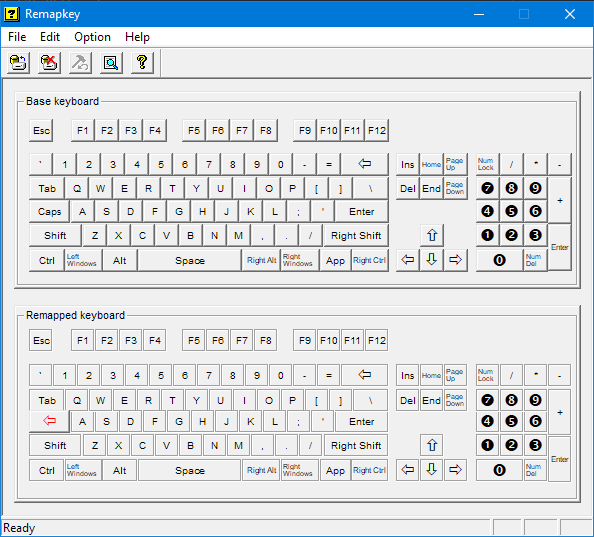
Remap Caps Lock Key as Backspace Key

Here's a quick trick that I've been using for a while now to alleviate my wrist pain (which I suppose is an occupational hazard) – remapping the Caps Lock key as the Backspace key so that I don't have to extend my pinky finger too far. It maybe also be more efficient, since it's quicker to press the Caps Lock key than the Backspace key.

I've been using remapkey.exe from Windows Resource Kit 2003 (which still works on Windows 10), but sadly it's no longer available for download from Microsoft.

There are many tools to remap keys on Windows. The recent resurrection of PowerToys now includes Keyboard Manager that allows remapping keys, so that might be a good choice to try.

September 12, 2020

Git Bash Prompt Showing Date and Time on Windows

Sometimes I have Git Bash open for several days, and knowing when I executed a particular command is helpful. Here's a quick-and-dirty way of showing the date and time in the bash prompt, which came about from looking at C:\Program Files\Git\etc\profile.d\git-prompt.sh and doing echo $PS1.

  • Copy the following content into a text editor and save it as .profile in the %USERPROFILE% folder:
PS1="\[\033]0;$TITLEPREFIX:$PWD\007\]\n\[\033[94m\]\D{%m/%d %H:%M:%S} \[\033[32m\]\u@\h \[\033[35m\]$MSYSTEM \[\033[33m\]\w\[\033[36m\]"'`__git_ps1`'"\[\033[0m\]\n$ "
MSYS2_PS1="$PS1"
  • Run source .profile to reload the prompt.

For the full list of configurable colors, refer to ANSI Color Escape Codes.

So how did I know to create the .profile file? There's a .bash_profile file in the %USERPROFILE% folder:

# generated by Git for Windows
test -f ~/.profile && . ~/.profile
test -f ~/.bashrc && . ~/.bashrc

Windows Terminal

Lately, I've been trying out Windows Terminal with oh-my-posh for PowerShell (based on the post by Scott Hanselman). You can also host cmd, bash (via wsl), etc., in Windows Terminal... I fear my days of using plain cmd and Git Bash on Windows will come to an end soon, though I'll surely miss the start up time of cmd.